
Documentation
Documentation
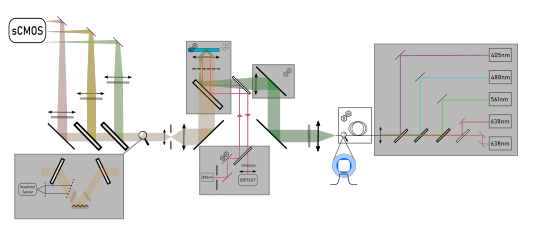
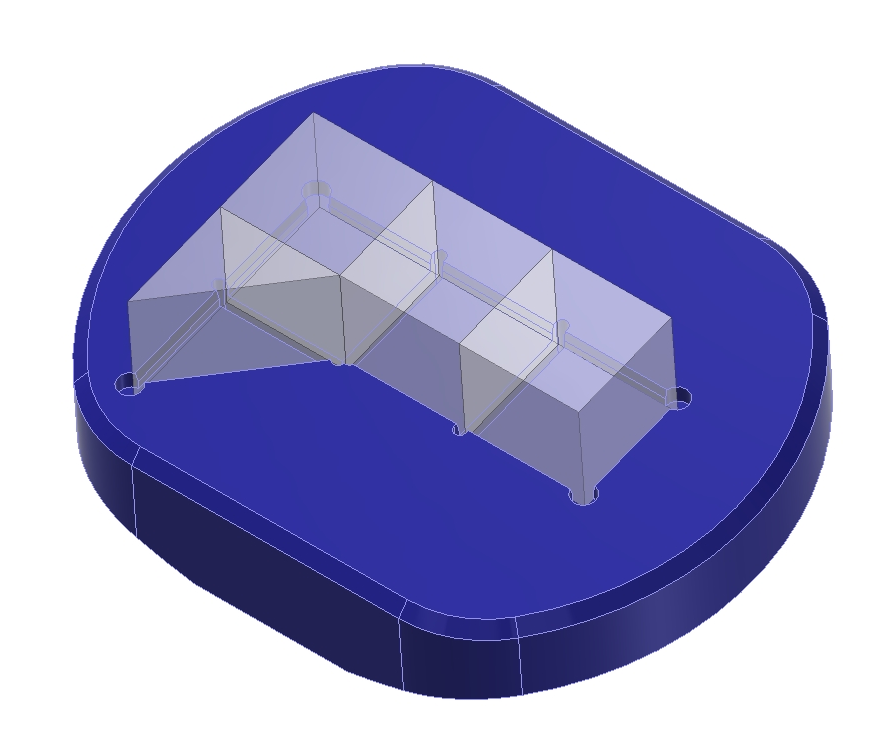
This file describes how to maintain and edit the Grussmayer website, including the github settings. Generally, I would recommend staying within the templates design and write your site in markdown according to the template under \templates. If you wish to include more advanced visualisations etc, try your luck with an own html file and stylesheets. If I find time I will include a guide for this as well, but the LLM of your choice will probably be more suited for this by now. As we have a storage restriction of 1GB for github pages, any bigger documentation should be done in a separate repository and then only linked here via a place holder page, you can see examples of this for _resources/hardware/cellblanket.html and _resources/hardware/prism_fabrication.html
Overall appearance
The site is based on the minimal-mistakes theme adapted by Ricardo Henriques lab for lab websites as opposed to the original personal portfolio. A lot of features have been stripped to make maintenance as low-effort as possible.
Structure
Main categories of the website are governed by following factor:
- which colllections exist in _config.ywl, to include in the website building
- the main page for that category / collection under /_pages/, which can be markdown (recommended) or html.
- appearance of the collection in the navigation bar at the top via root/_data/navigation.yml
Linking your page to the right place in the website
Independent of whether you use a html or md site, to define the category of your site (protocol, data, hardware, software). Place your page in the appropriate folder, either /resource/your_category/your_file.md or /protocol/your_file.md (this is just to keep the folder strutures clean). Then, in the pre-amble of your website (between the top two — lines), assign your file to a collection (most likely ‘resources’) and assign it a tag (hardware, software, data, protocol). See the example pre-amble at the end of the paragraph. The code that creates the structure looks for files placed under resource or protocol (see snippet below) and then checks the tag in the ‘post’.
<div class="grid">
<div class="wrapper">
</div>
</div>
Appearance
The header is the image depicted at the top of the page. The teaser is the image depicted as a thumbnail in the page that links to your page (in case it is linked via the archive-single-proj.html widget). If not otherwise defined, the header is also your teaser. You can use both video and images as a header.
For images, you can use an additional overlay_filter, that changes the transparency of your image (0.0: your image, 1.0: fully transparent == black)
---
title: "Your title at the top of the page and in the teaser link"
header:
    overlay_image: your relative path after site/images/
    overlay_filter: 0.0, your image // 1.0 fully transparent == black background
    teaser: your relative path after site/images/
    video: your relative path after site/images/  KEEP IT SMALL! > .mp4 might be best
layout: archive
tag: hardware, software, data, protocol
permalink: /resources/your_category/your_project/
author_profile: false
toc: false (table of content on the left side, only true if its a large page )
toc_label: "Navigation" (what)
toc_sticky: true
comments: false // enables people to comment, prbably irrelevant
collection: resources
---
Gallery
There are snippets in the assets called new-gallery (.js/.css). Just add the .js to your html under the “” section. Then add the following html snippet (or as as depicted in the index page) to your html.
<div class="gallery-slider" data-manifest="/images/home/gallery/gallery.json" id="homeGallery" aria-label="Image gallery">
<button class="gallery-btn prev" aria-label="Previous image" title="Previous">
❮
</button>
<div class="gallery-viewport">
<img class="gallery-image" alt="" loading="lazy">
<div class="gallery-caption" aria-live="polite"></div>
</div>
<button class="gallery-btn next" aria-label="Next image" title="Next">
❯
</button>
<div class="gallery-dots" aria-label="Slide navigation"></div>
</div>
You can define the gallery from which the widget grabs the images to depict in a .json file, here under images/home/gallery/gallery.json It defines the image and its caption like this:
[
    { "src": "ASE008.png", "caption": "Ratiometric spectral demixing SMLM in cytoskeletal organisation" },
    { "src": "brac2_rad51.png", "caption": "Sequential multitarget SMLM in DNA repair (BRCA2 & RAD51)" },
    { "src": "htt_thx.png", "caption": "Amyloid targeting dyes for huntingtin exon 1 aggregation" }
]
Moritz Engelhardt, 14/11/25